Lovely File Browser - Unity
A downloadable Lovely FB - Unity
Lovely File Browser
Seamless file browsing inside the Unity runtime
Fast, multi‑platform, fully themed, and 100 % inside Unity
Lovely File Browser is:
A lightweight file explorer right where you need it – inside the Unity runtime build.
Lovely File Browser lets you navigate the operating system’s directories and files with no external plugins.
It uses `System.Directory()` and built‑in Unity APIs only.
Works on Windows, macOS, Linux, any platform that supports .NET System.IO.
Key Features
- Intuitive UI
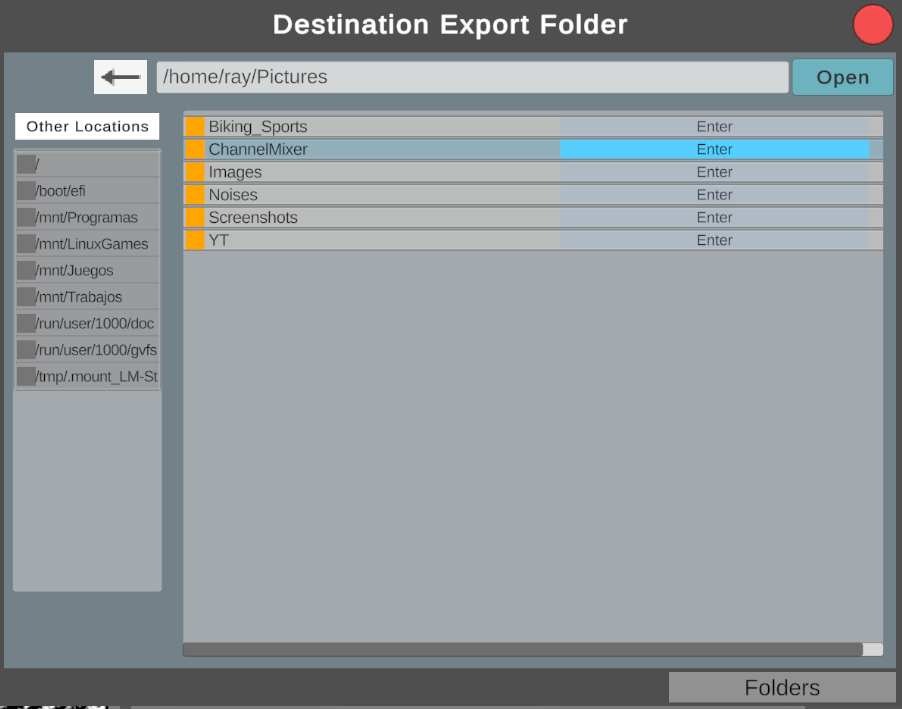
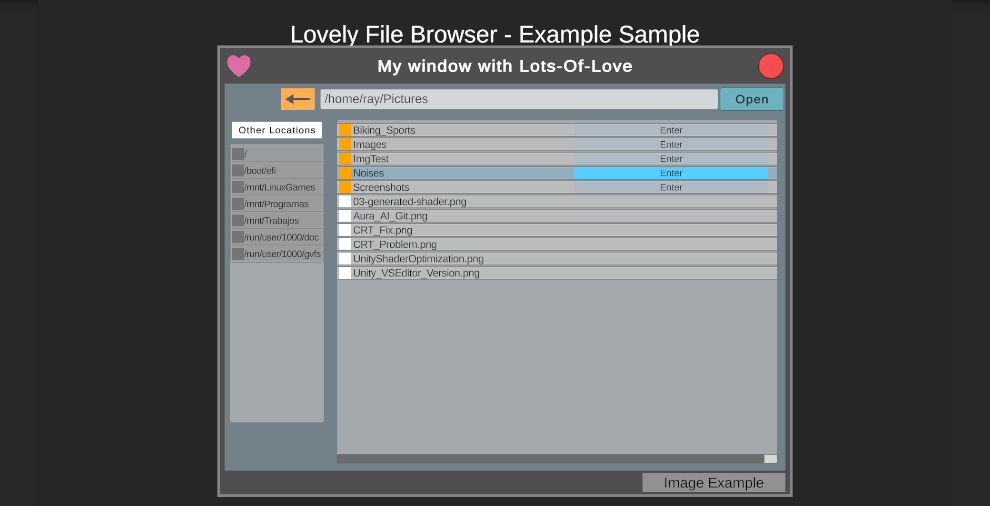
Classic file‑browser look, with draggable window, path bar, back/forward navigation, folder and file icons.
- Fast Rendering
Reads only paths; renders predefined icons
- Multi‑Selection
Single Click to select multiple files or folders for bulk operations. if Multi select is enabled
- Extension Filters
Create Extension filters (e.g., “Images”, “Shaders”) with any number of extensions (`{".png", ".exr"}`) and apply them instantly when a file browser window opens. - Folder‑Only Search
Dedicated filter to show only directories – for save dialogs or choosing import locations. - Path Copy/Paste
Paste a full path into the address bar to jump directly to any location. - Theming & Customization
Fully style every element: window panels, text colors, background gradients, button icons, and folder/file thumbnails. - Runtime Integration
Exposes known API methods (`OpenFileWindow()`, `GetSelectedPaths()`, `Fext.SetFilter()`) that you can call from scripts to get paths, load textures, models, or any file at runtime.
- Event Driven
Hook and unhook at need - Lovely UI
Minimal draw calls, fully responsive to DPI scaling. |
How It Works
1. Open the (Lovely Browser) Window
LovelyFileBrowser.OpenFilePanel("");
Pops up a file browser window. The address bar shows your current directory. (No path returns root)
2. Navigate
- Click 'Enter' in folders → Navigates to that folder to reveal contents.
- Use left back arrow to navigate to parent directory.
- Drag the window anywhere within the app screen.
3. Select Files/Folders
Click on individual items; and they will remain selected when multi selection is enabled in the OpenFileWIndow(), otherwise only 1 item will remain selected at a time.
Selected paths can be retrieved when clicking open via Subscribing to:
LovelyFileBrowser.onComplete;
To retrieve your paths with.
LovelyFileBrowser.GetSelectedPaths();
4. Apply Filters
Call :
Fext.SetFilter("Images", ".png", ".jpg" })`
Before opening the window, or create them on script.
5. Load Resources
Use the returned paths with Unity’s standard loading APIs
- `AssetDatabase.LoadAssetAtPath()`
- `Resources.Load()`
- `File.ReadAllBytes()`
Compatibility
| Platform | Support |
| Windows | Editor and Build |
| Mac | Editor and Build |
| Linux | Editor and Build |
| Android | Runtime |
| iOS | Runtime |
Integration Tips
- Drag the `LovelyFileBrowser.prefab` into your scene or keep it as a singleton via script.
- Make sure you subscribe and unsubscribe from the .onComplete event. When you open and close or complete a file browser window session.
Screenshots
Runtime Window – Classic look
Final Note
Whether you simply need to let users pick files on the fly, Lovely gives you a polished, fast, and fully customizable solution that feels native to every platform.
Download
Click download now to get access to the following files:
Leave a comment
Log in with itch.io to leave a comment.